
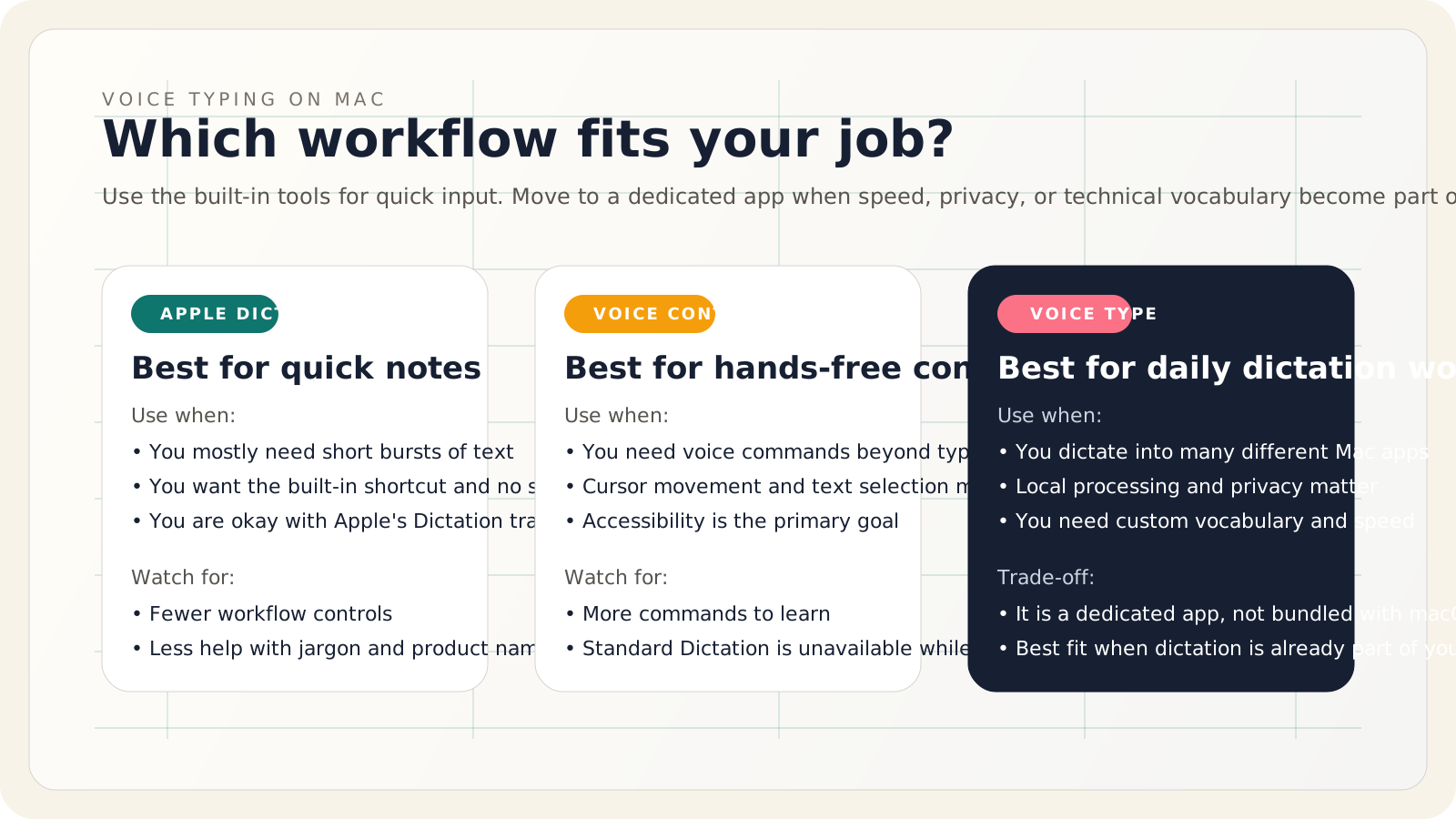
If you want to voice type on a Mac in 2026, start with Apple Dictation for quick text entry, use Voice Control when you need full hands-free control, and move to a dedicated app only if dictation is part of your daily workflow.
That distinction matters because a lot of Mac dictation content mixes those three jobs together and leaves people with the wrong setup.
TL;DR
- Turn on Apple Dictation in
System Settings → Keyboard → Dictationif you want fast, basic speech-to-text in normal text fields. - Turn on Voice Control in
System Settings → Accessibility → Voice Controlif you need spoken commands, cursor control, and text editing without touching the keyboard. - Apple says you can dictate text of any length; Dictation stops when no speech is detected for about 30 seconds, not after a hard one-minute cap.
- Check the text below Dictation in Keyboard settings if you care about privacy: on some setups, Apple shows whether general text Dictation is processed on-device or sent to Siri servers.
- Use a dedicated app like Voice Type when you need a global hotkey, local processing, and better handling of technical vocabulary across many Mac apps.
Start with the built-in option: Apple Dictation
For most people, the right first step is still Apple Dictation.
Open System Settings → Keyboard → Dictation, turn it on, and choose your language, shortcut, and microphone. Apple’s current Mac guide says you can start Dictation with the Microphone key, your configured keyboard shortcut, or Edit → Start Dictation in supported apps.
Once Dictation is active:
- Place the cursor where you want text.
- Trigger Dictation.
- Speak naturally.
- Say punctuation out loud if needed, such as “comma,” “period,” “new line,” or “new paragraph.”
- Stop Dictation with
Escape, the microphone key, or your configured shortcut.
If you only dictate occasional messages, notes, or short drafts, this is usually enough.
Helpful next steps:
- Setup walkthrough: /answers/turn-on-voice-typing-mac
- Shortcut details: /speech-to-text-mac
- Spoken punctuation and formatting: /answers/mac-dictation-commands
What changed from older Mac dictation advice
A lot of SEO pages still repeat older claims about strict time limits, fuzzy shortcut behavior, or “Dictation vs Siri” explanations that no longer reflect current macOS guidance.
Two details from Apple’s current support pages are worth calling out:
- Apple now states that you can dictate text of any length.
- Dictation stops automatically when no speech is detected for 30 seconds.
That is different from the older “60-second timeout” framing that still shows up in many blog posts and YouTube comments.
When Voice Control is the better tool
Use Voice Control when your goal is not just “turn speech into text,” but “operate the Mac by voice.”
Voice Control is better when you need to:
- move the cursor,
- select or replace specific words,
- trigger commands like “Show commands” or “Show grid,”
- navigate apps without touching the keyboard or trackpad.
Apple’s Voice Control documentation also notes an important setup difference: the first time you enable it, your Mac needs internet for a one-time download, but after that it can be used without an internet connection.
One more nuance that many articles miss: Apple’s current Dictation page says that when Voice Control is on, you use Voice Control to dictate text and standard macOS Dictation isn’t available.
So the tool choice is:
- Dictation for normal keyboard-adjacent text entry
- Voice Control for accessibility and spoken UI control
When a dedicated dictation app makes more sense
If dictation is part of your job, the built-in option often stops being the best workflow even when it is technically “good enough.”
That usually happens when you care about one or more of these:
- a global hold-to-talk hotkey that works consistently across apps,
- local processing with a more predictable privacy model,
- custom vocabulary for product names, jargon, and unusual spelling,
- a faster stop-to-text loop for repeated short bursts all day,
- a workflow built around writing in Slack, Linear, Gmail, GitHub, Cursor, or other third-party apps.
That is the case for Voice Type: it is not trying to replace Apple’s accessibility stack. It is trying to make daily dictation feel fast and repeatable across normal Mac work.
If that is your use case, these pages are more useful than a generic “how to enable Dictation” article:
- /voice-typing-mac
- /speech-to-text-mac
- /compare/apple-dictation
- /compare/macwhisper
- /compare/wispr-flow
A practical setup that works for most people
If you want the least frustrating Mac voice typing setup, do this:
1. Fix the microphone path first
Pick the right input source before you judge transcription quality. Apple explicitly recommends checking the selected microphone and input volume if Dictation is not working as expected.
If you use an external microphone:
- make sure it is selected in Sound or Keyboard settings,
- keep input volume high enough to register speech clearly,
- reduce room echo where possible,
- use a headset mic in noisy environments.
2. Decide whether you need commands or just text
This is the most common setup mistake.
- If you mainly want to write faster, use Dictation.
- If you need to control the Mac by voice, use Voice Control.
3. Customize the trigger
The default trigger works for some people, but daily users often benefit from a shortcut that feels more deliberate. Apple lets you customize the Dictation shortcut directly in Keyboard settings.
4. Learn five spoken formatting commands
Do not try to memorize everything at once. Start with:
periodcommaquestion marknew linenew paragraph
Those alone make Dictation much more usable for email, notes, and chat.
5. Use the built-in tools for a week before buying anything
If they fit your workflow, keep them. The signal that they do not is specific: you notice the tool during the work rather than after it.
Troubleshooting that fixes most Mac dictation failures
Apple’s current troubleshooting page is clearer than most blog roundups. The highest-signal checks are:
- confirm Dictation is enabled,
- confirm the correct language and region,
- confirm the right microphone is selected,
- raise input volume if your Mac barely hears you,
- avoid echo and background noise,
- check whether your setup needs an internet connection or is processing general Dictation on-device.
If you want the step-by-step version, use /answers/dictation-not-working-mac.
Which option should you pick?
Here is the short answer.
| If you need... | Best fit | | --- | --- | | Quick voice typing in normal text fields | Apple Dictation | | Full hands-free Mac control | Voice Control | | Daily dictation across many Mac apps | Voice Type | | Local file transcription more than live dictation | MacWhisper-style tools |
Frequently asked questions
Does Mac have built-in voice typing?
Yes. Apple’s built-in option is Dictation, available from Keyboard settings on macOS.
Is Mac voice typing offline?
Sometimes. Apple says you can check Keyboard settings to see whether your general text Dictation is processed on your device or sent to Siri servers. Voice Control requires a one-time download, then can work without internet.
What is the shortcut for voice typing on Mac?
It depends on your settings and hardware. Apple lets you use the microphone key or a custom Dictation shortcut.
What is the difference between Dictation and Voice Control on Mac?
Dictation is for entering text. Voice Control is for operating the Mac and editing text by voice. When Voice Control is on, standard Dictation is not available.
When should I use a third-party dictation app?
When dictation is part of your daily work and you need a better workflow than the built-in tools give you, especially around app coverage, local processing, and technical vocabulary.
Sources
- Apple Support: Dictate messages and documents on Mac
- Apple Support: If Dictation on Mac doesn’t work as expected
- Apple Support: Get started with Voice Control on Mac
- Apple Support: Commands for dictating text on Mac
- MacMost transcript overview: How To Use Dictation on Your Mac